
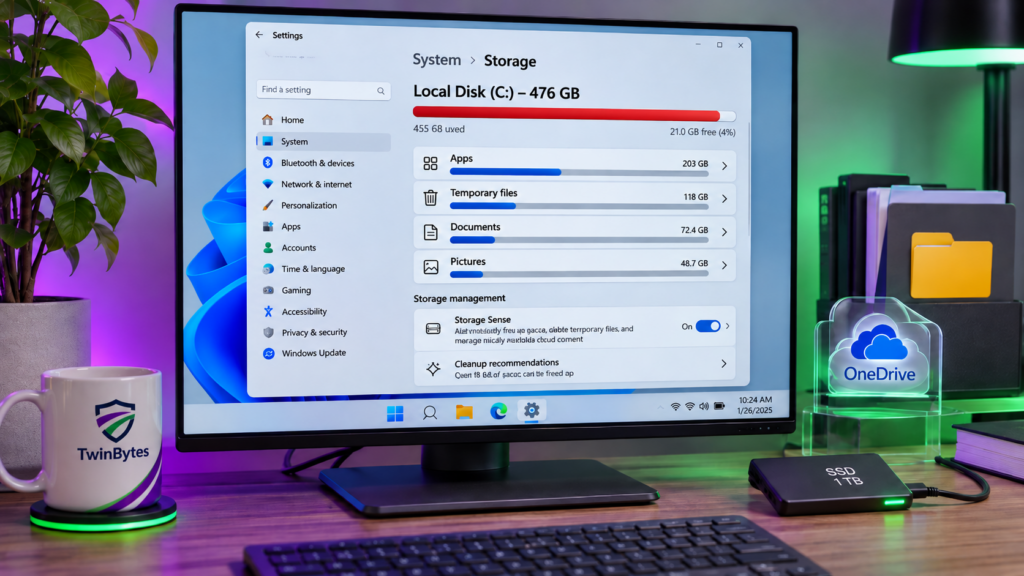
That “low disk space” warning can appear even when you haven’t installed anything new. One day your computer seems fine, and the next Windows is complaining that drive C: is almost full. You may also notice slower performance, failed updates, or trouble saving files. The good news is that a full drive doesn’t automatically mean you need a new computer. The trick is finding out what is using the space before deleting anything important.
Why does the C: drive fill up?
Your C: drive normally holds Windows, installed programs, and personal files. Over time it also collects temporary files, downloads, application data, and files left behind by updates. Photos and videos can use a surprising amount of storage. A small solid-state drive (SSD) can fill quickly, especially if you use the computer for work and store years of documents locally.
Cloud storage can add to the confusion. Files stored in OneDrive may also be downloaded to your computer, depending on their settings. Seeing a file in the cloud does not necessarily mean it uses no local disk space. If your computer has been getting sluggish, our article Why Is My Computer So Slow? explains other possible causes too.
1. Check how much storage is actually left
On Windows 11, click Start → Settings → System → Storage. Give Windows a moment to calculate how much space is used by installed apps, temporary files, documents, and other categories. This is a useful starting point, but the categories may not tell the whole story.
You can also click the File Explorer folder icon on the taskbar, select This PC, and look under Devices and drives. If the C: drive is nearly full, take note of its total capacity and available space. A 128 GB drive and a 1 TB drive can have very different long-term needs.
2. Start with Windows’ built-in cleanup tools
Rather than downloading a random “PC cleaner,” start with tools already included in Windows. Go to Start → Settings → System → Storage → Cleanup recommendations. Review the categories and the files Windows proposes removing. Select only items you recognize and no longer need, then choose the relevant cleanup button.
Pay attention to Downloads and Recycle Bin. These may contain files you intended to keep. Also be careful with Previous Windows installation(s). Removing those files can free space, but it can also remove your option to roll back a recent Windows upgrade. Microsoft’s guide to freeing drive space explains these built-in options.
3. Consider Storage Sense, but check its settings
Storage Sense can automatically clear unnecessary temporary files and manage certain other items. Find it under Start → Settings → System → Storage → Storage Sense. Open its settings before turning on automatic cleanup so you understand when it runs and what it may remove.
Microsoft says the default configuration does not manage your Downloads folder or cloud content unless you choose those options. That is reassuring, but it is still worth checking your settings rather than assuming every computer is configured the same way. Read Microsoft’s Storage Sense guidance for details.
4. Check OneDrive before deleting synced files
This is where people can accidentally cause trouble. If your Desktop, Documents, or Pictures folders are synced to OneDrive, deleting a file from the synced folder can also delete it from the cloud and your other synced devices. Deleting files is not the same as freeing local storage.
With OneDrive Files On-Demand, you can keep a file visible in File Explorer without storing its full contents on the computer. For a file already safely synced, right-click it and choose Free up space to make it online-only. It will need an internet connection when you open it again. Files you need while travelling or without internet access should remain available offline. Microsoft’s OneDrive and Storage Sense explanation describes how downloaded cloud files can consume local storage.
A funny true story: A few years ago, a client was trying to free up disk space by deleting files from folders synced with OneDrive. Yet the drive kept filling up! The computer had more OneDrive files waiting to download than it had room for. Every time the client deleted some files and created a little space, OneDrive downloaded more of the remaining files and filled it again. It was like trying to empty a bathtub while someone kept turning on the tap.
Before deleting anything, sign in to OneDrive on the web (or your organization’s OneDrive account) to review what you have stored. If you do not need everything downloaded to your computer, use Files On-Demand and choose Free up space for files you want to keep online-only. Make sure they have finished syncing first. This frees local storage without deleting the files from OneDrive.
One more important distinction: syncing files is not the same as maintaining a separate backup. Our article Is OneDrive a Backup? explains why this matters, especially for small businesses.
5. Look for large files and programs you no longer need
Video recordings, phone backups, old installation files, and unused software can quietly take up many gigabytes. In Start → Settings → Apps → Installed apps, review programs you no longer use. Uninstall them through Windows rather than manually deleting their program folders. Some applications share components with other software, so remove only programs you can confidently identify.
For personal files, check large videos and old downloads first. If you’re moving important files to an external drive, confirm that the copies open correctly before removing the originals. Keep at least one independent backup of anything you cannot afford to lose.
6. Know what not to delete
Online advice sometimes recommends deleting mysterious folders under Windows, Program Files, or AppData to recover space. Avoid that shortcut. Those folders may contain essential system files, application settings, or data that a program still needs. Likewise, don’t disable Windows recovery features or remove system files just to make a storage warning disappear.
Be suspicious of cleanup utilities that promise dramatic speed improvements, demand payment to fix hundreds of “errors,” or ask you to disable security software. A proper cleanup should begin with understanding the problem, not clicking every Delete button available.
7. When is a larger SSD the better solution?
If your drive fills up again soon after a careful cleanup, the computer may simply need more storage. Upgrading to a larger SSD can be a sensible repair on a computer that otherwise performs well. However, not every laptop has replaceable storage, and the cost of upgrading varies. Your files should be backed up before any drive replacement or migration.
For an older computer with several problems, compare the upgrade cost with replacement. Our guide Should I Repair or Replace My Computer? can help you think through that decision.
Why free space matters for Windows updates
Low storage is more than an inconvenience. Windows needs working space to download and install some updates, including important security fixes. Microsoft confirms that insufficient storage can prevent an update from proceeding until space is freed. See its Windows update storage guidance.
For a small business, a computer that unexpectedly runs out of storage can interrupt work or delay maintenance. This is one reason proactive monitoring is valuable: storage warnings can be noticed before they become a bigger problem. TwinBytes Managed IT Services help businesses stay ahead of common issues, while our computer repair services can help investigate persistent storage problems and evaluate an SSD upgrade.
Important takeaways
Start by checking Settings → System → Storage, use Windows’ cleanup recommendations carefully, and understand your OneDrive settings before removing files. Avoid deleting unfamiliar system folders. If the drive keeps filling up, investigate the cause rather than repeatedly clearing random files. Sometimes a careful cleanup is all you need; other times, a larger SSD is the more practical long-term fix.