
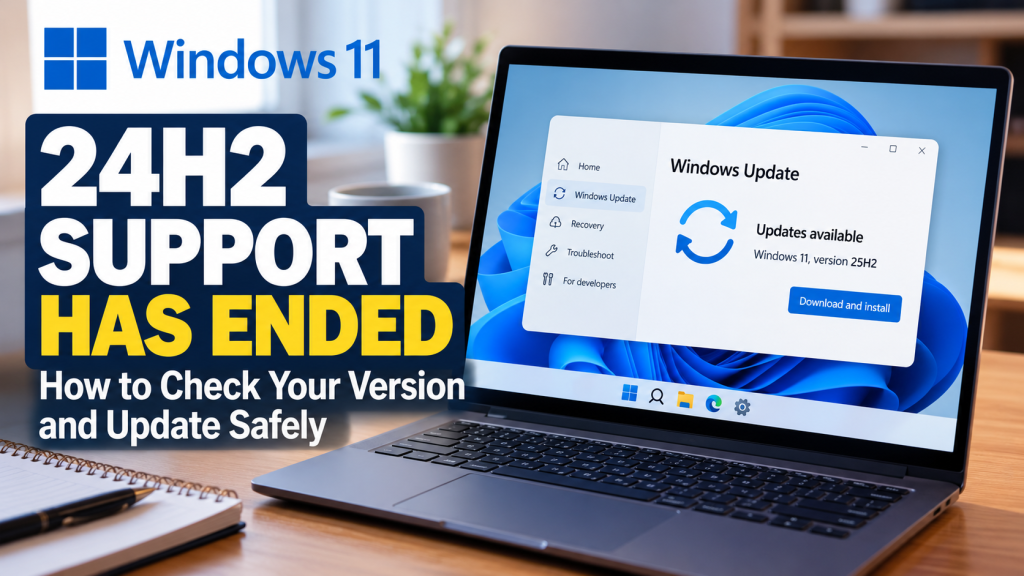
Many people assume that if their computer says Windows 11, it must still be receiving security updates. That is not necessarily true. Windows 11 has different versions, and each version has its own support deadline. On October 13, 2026, Microsoft ended regular updates for Windows 11 version 24H2 on Home and Pro computers. If your computer is still running that version, it is time to check your options.
This does not mean Windows 11 itself has ended support, or that your computer suddenly needs replacing. In many cases, moving to a supported Windows 11 version is all that is required.
What Happened to Windows 11 Version 24H2?
Windows 11 version 24H2 was released in 2024. Microsoft confirmed that, as of October 13, 2026, the Home and Pro editions of 24H2 have reached the end of updates. Those devices no longer receive the regular monthly security and quality updates intended to protect against newly discovered problems. Microsoft’s Windows 11 version 24H2 release health page confirms the deadline and recommends upgrading to version 25H2 or 26H2.
There is an important distinction for businesses: Windows 11 Enterprise and Education editions of 24H2 have a longer support period, extending into October 2027. Most home computers and many small-business computers run Home or Pro, so they are affected by the October 2026 deadline. Special long-term servicing editions follow different rules.
How Can You Tell Which Windows Version You Have?
You can check in less than a minute. Click the Start button, then click Settings. In the Settings window, click System, then click About. Scroll down to Windows specifications. You should see an edition, such as Windows 11 Home or Windows 11 Pro, and a version number, such as 24H2, 25H2, or 26H2. You can also press Windows key + R, type winver, and press Enter. Microsoft provides these methods in its Windows device information guide.
If you see Windows 11 Home or Pro, version 24H2, you need to plan an update. If you see 25H2 or 26H2, you are on a newer version, although you should still keep up with regular security updates. Microsoft’s Windows 11 lifecycle page lists support deadlines for each version.
Will Your Computer Stop Working?
No. Just as with other Microsoft products that reach end of support, Windows 11 version 24H2 can continue to start, open programs, and access the internet. The problem is that future security vulnerabilities may no longer be corrected through the normal monthly updates for that version.
A computer can appear to be working perfectly while its operating system becomes increasingly outdated. Antivirus protection is helpful, but it does not replace operating system security fixes. For a small business, leaving an unsupported Windows version on a computer used for email, banking, customer records, or shared files creates an avoidable risk.
How Do You Update to a Supported Version?
For most home users, click the Start button, then click Settings. In the Settings window, click Windows Update, then click Check for updates. If a newer Windows 11 feature update is offered for your computer, follow the prompts. Microsoft is rolling out Windows 11 version 26H2 in phases, so not every eligible computer will receive it at the same time. Version 25H2 is also a supported upgrade path. Microsoft’s Windows Update instructions explain how updates are offered.
Before installing a major feature update, make sure important files are backed up, your laptop is connected to power, and you have enough free storage. Save your work and allow time for the computer to restart. If your computer runs specialized business software or relies on older equipment, check with your IT provider before installing a major Windows update. Schedule the change outside busy hours if the computer is important to daily operations.
Important: A feature update can temporarily interrupt remote access and may require troubleshooting or recovery if installation fails. If you depend on remote support or the computer runs an important business function, arrange a maintenance window and make sure someone can access it physically if necessary.
What If Windows Update Does Not Offer a New Version?
There are several possible explanations. Your computer might need other updates or a restart first, the upgrade may be managed by a business policy, or Microsoft may have temporarily withheld the new version because of a known compatibility problem. Microsoft calls these protections safeguard holds. They are intended to prevent an upgrade that could cause problems with particular hardware or software.
Do not immediately force an upgrade using a separate installation tool. Check the available Windows updates, restart if required, and look for any error messages. If Windows Update repeatedly fails, Microsoft’s update troubleshooting guide covers common causes such as insufficient storage, driver conflicts, and corrupted update files. A computer that has already experienced failed upgrades deserves a closer look before trying again.
Could an Update Fix a Slow or Unreliable Computer?
Sometimes an update resolves a known Windows problem, but a major version upgrade is not a general repair for a slow computer. Poor performance can also come from failing storage, overheating, too many startup programs, malware, or other hardware and software issues. If the computer is already crashing or frequently needs restarting, diagnose that problem before adding the stress of a major upgrade. Our article Why Is My Computer So Slow? explains some of the common causes.
Likewise, reaching the end of support for one Windows 11 version is not a reason to buy a new computer when a supported version can be installed. If the machine has several unrelated problems or no longer meets your needs, our guide on repairing or replacing a computer can help you evaluate the decision.
Why Businesses Should Track Windows Versions
Even a business with only a few computers can end up with several different Windows versions. One employee may have updated recently while another computer has quietly fallen behind. Waiting until software stops working or an update fails can turn a manageable task into unexpected downtime.
Keeping an inventory of devices and monitoring update status helps identify computers approaching their support deadlines. This is one of the practical benefits of TwinBytes Managed IT Services: knowing which computers need attention and planning changes before they interrupt the workday. Monitoring cannot prevent every update problem, but it makes it easier to spot issues and respond with the right information.
What Should You Do Now?
Check the edition and version of Windows 11 on each computer you use. If it is Home or Pro version 24H2, plan an upgrade to a supported version and verify your backups first. If an update is unavailable or keeps failing, investigate the reason rather than forcing it. A few minutes spent checking now can help prevent security gaps and an inconvenient repair later.
TwinBytes Inc. helps home users and small businesses in Georgina and surrounding communities with computer repairs and Windows troubleshooting, including failed updates and upgrade planning. If you are unsure what your computer is running or how to proceed safely, we can help you review the options.