
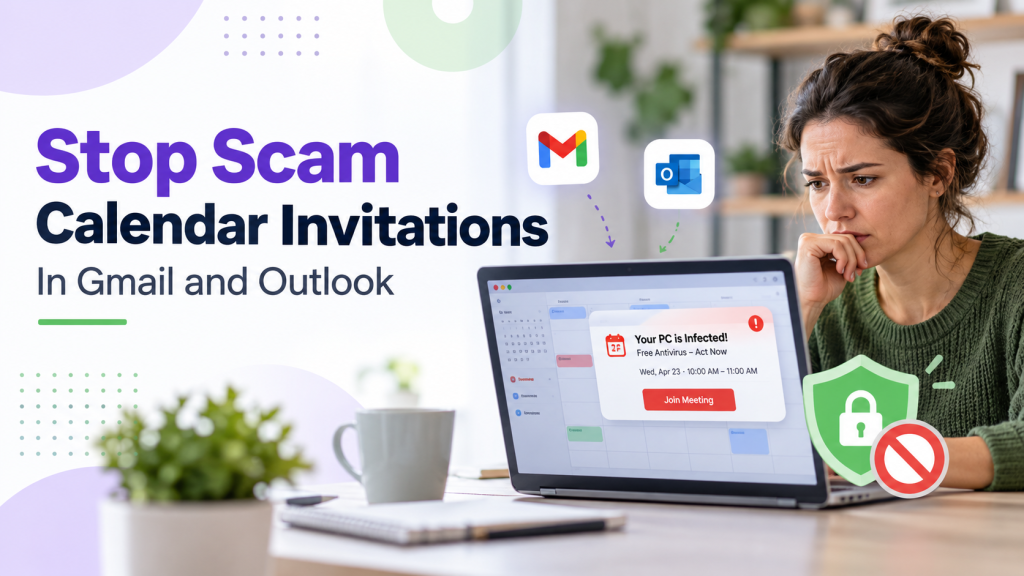
You open your calendar and discover an appointment you never created or accepted. It may claim that your antivirus subscription has expired, a large payment was processed, your account has been compromised or you must call immediately to cancel a purchase. The event might include a phone number, website link, QR code or attachment. This is a growing form of phishing known as a calendar invitation scam or calendar phishing, and it can affect both Google Calendar and Microsoft Outlook users.
Why Are Scam Invitations Appearing on Your Calendar?
Online calendars are designed to make scheduling convenient. When someone sends you a meeting invitation, the event may appear on your calendar before you accept it. Scammers abuse this feature to place fraudulent messages somewhere you may trust more than your email inbox. The event may also produce notifications on your computer or phone, making it look like Google, Microsoft or your device is warning you about a legitimate problem.
Seeing the invitation does not necessarily mean your Google or Microsoft account has been hacked. In most cases, the scammer simply sent an invitation to your email address and the calendar service displayed it automatically. The danger begins when you follow the instructions inside the event.
Security researchers have documented malicious invitations containing links, attachments and QR codes intended to steal information or deliver malware. Microsoft has also acknowledged that phishing attacks increasingly use meeting invitations to bypass traditional email defences and remain visible through calendar entries. You can read more in Microsoft’s calendar-security announcement.
What Can Happen If You Respond to the Scam?
A fraudulent calendar event may direct you to a convincing copy of a Microsoft, Google, bank, PayPal, Amazon or antivirus login page. If you enter your password, the scammer may gain access to your account. From there, they could read your email, reset passwords for other services, access files, impersonate you or send scams to your contacts.
Some invitations provide a telephone number and claim you must call to reverse a charge. The person answering may ask for payment information or persuade you to install remote-access software. This can give them control of your computer and access to personal or business information. Other invitations may use attachments, QR codes or downloads that lead to malware.
If an unwanted event merely appeared on your calendar, there is no reason to panic. If you did not click anything, call the number, provide information or install software, you were probably not compromised. Report and remove the invitation, then adjust your calendar settings.
Warning Signs of a Calendar Invitation Scam
Be suspicious of any calendar event you were not expecting, especially one that claims a payment was processed, a subscription was renewed, an account will be suspended, a refund is waiting or immediate action is required. Watch for unfamiliar organizers, unusual sender addresses, urgent instructions, unexpected attachments, QR codes, phone numbers and links asking you to sign in.
Even if an invitation appears to come from someone you know, verify it separately when the request seems unusual. Their account could have been compromised. Contact the person or company using information you already trust, not the phone number or website included in the event.
How to Stop Invitations from Automatically Appearing in Google Calendar
Google provides a setting that prevents new invitations from appearing on your calendar until you respond to them:
- Open Google Calendar on a computer.
- Click the gear icon in the upper-right corner and select Settings.
- Under General, select Event settings.
- Find Add invitations to my calendar.
- Select When I respond to the invitation in email.
- If available, turn off Let others see all invitations if they have permission to view or edit my events.
Google also offers Only if the sender is known, but “known” can include people in your contacts, people in your organization and people you previously interacted with. Selecting When I respond to the invitation in email provides stronger protection against automatic additions. Google advises that this setting affects new invitations only, so existing scam events must still be removed. See Google’s current invitation settings for more information.
In the Google Calendar mobile app, tap the three-line menu and select Settings, followed by General, Adding invitations and Add invitations to my calendar. Choose When I respond to the invitation in email. Repeat the change for each Google account connected to your calendar.
Google also has a separate feature called Show events from Gmail. It can automatically create calendar entries from flight, hotel, restaurant, medical, ticket and other confirmation emails. If ordinary emails are producing unwanted events, open Google Calendar settings, select Google Workspace smart features and turn off Show events from Gmail. This also prevents legitimate reservations from being added automatically. Google explains this feature in its Events from Gmail documentation.
How to Reduce Automatically Added Events in Outlook.com
Microsoft Outlook.com also has a setting that prevents it from creating calendar events based on information detected in ordinary emails:
- Sign in at Outlook.com.
- Click the gear icon to open Settings.
- Select Calendar, then Events from email.
- Choose Don’t add events to my calendar from email, or turn off every category you do not want Outlook to add.
- Save the change if a Save button appears.
Microsoft documents this setting in its Events from email instructions. However, there is an important limitation: this controls events Outlook creates from ordinary email content, such as travel, dining, deliveries, bills and reservations. It does not necessarily prevent a genuine meeting invitation from appearing tentatively on your Outlook.com calendar.
Outlook.com currently does not provide consumers with a straightforward equivalent to Google’s When I respond to the invitation in email option. Scam meeting invitations may therefore still appear on an Outlook calendar even when the related message is placed in the Junk Email folder.
If you use classic Outlook for Windows, including with email hosted by another provider, open File → Options → Mail, scroll to Tracking, and uncheck Automatically process meeting requests and responses to meeting requests and polls. Outlook may still process an invitation if you open it or view it in the Reading Pane, but disabling this feature reduces automatic processing.
How to Remove and Report a Scam Invitation
In Google Calendar, open the suspicious event, select More actions or the three-dot menu and choose Report as spam. Google says this removes the event and, if it is recurring, the entire series. You should also report the related email as spam or phishing in Gmail. Google provides complete instructions for reporting inappropriate Calendar events.
In Outlook.com, locate the original invitation in your Inbox or Junk Email folder. Select Report, then choose Report phishing or Report junk. Remove the corresponding event from your calendar as well. If Outlook gives you the choice, remove it without sending a response to the organizer. Responding may confirm that your email address is actively monitored.
You can block a persistent Outlook sender by opening Settings, selecting Mail, then Junk email and adding the address or domain under Blocked senders and domains. Scammers frequently change addresses, so blocking one sender will not stop every future attempt, but reporting the message helps Microsoft improve its filtering.
If suspicious events continue to return, check whether an unfamiliar calendar has been added to your account and review which apps have permission to access your calendar.
Additional Protection for Businesses
Businesses using Microsoft 365 may have additional administrative protections that are not available with a free Outlook.com account. An IT provider can investigate mail-flow rules, quarantine suspicious external meeting requests and use Microsoft Defender for Office 365 to remove malicious messages and related calendar entries. Blocking every external invitation could also interfere with legitimate customer and supplier meetings, so these controls must be configured and tested carefully.
Regardless of which email service you use, keep your operating system, web browser, email software and security protection updated. Use multi-factor authentication or passkeys whenever available, and treat unexpected calendar invitations with the same caution as suspicious emails.
The Most Important Thing to Remember
A calendar notification is not proof that a warning, payment or appointment is legitimate. Scammers are taking advantage of automatic calendar features because people may trust a reminder that appears directly on their schedule. Do not click links, scan QR codes, open attachments or call phone numbers in an unexpected invitation. Report it, remove it and verify any concerning claim through a trusted contact method.
Small businesses without an in-house IT department can also benefit from ongoing monitoring, preventive maintenance and professional assistance when suspicious activity appears. TwinBytes provides monthly preventive computer maintenance and managed IT support to help identify problems early and keep business computers protected.