
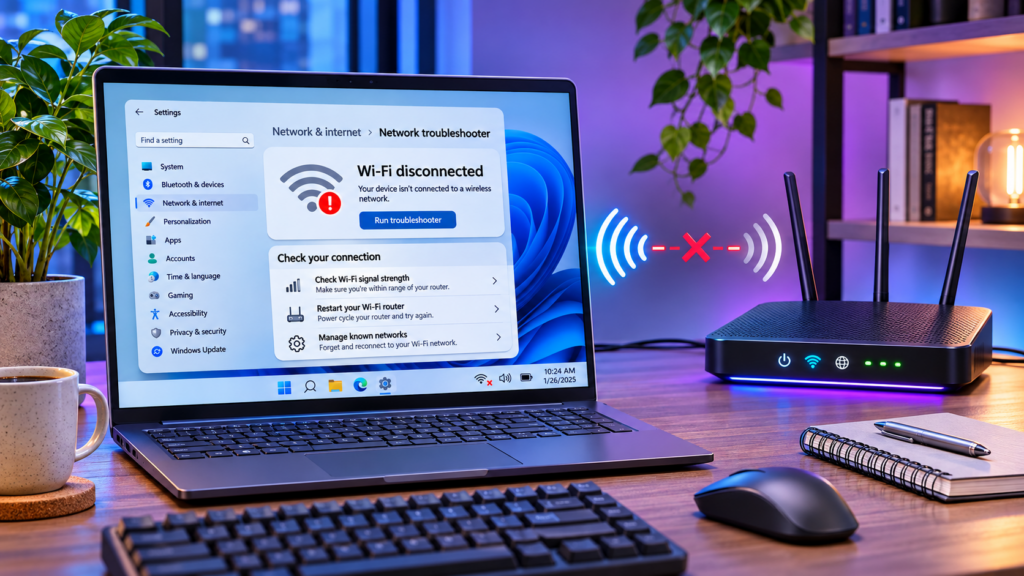
You’re in the middle of a video meeting, sending an invoice or watching a movie when suddenly the internet stops working. A few seconds later, everything is back to normal. Then it happens again. Is it your computer, your router or your internet provider? Before spending money on new equipment, there are a few things you can check to narrow down the problem.
1. Find out what is actually disconnecting
Being connected to Wi-Fi and being connected to the internet are two different things. Wi-Fi connects your computer to your local network. Your router provides a path from that network to the internet. You can have a strong wireless signal and still be unable to access websites if the internet service is down.
When the problem happens, check another device connected to the same wireless network. If you’re using your phone for this test, temporarily turn off mobile data so it doesn’t quietly switch to your cellular connection. Try opening two unrelated websites. If everything else works but your computer doesn’t, concentrate on the computer first. If several devices stop working at the same time, investigate the shared network equipment or internet service.
Also consider whether the entire internet connection is failing or if it’s just one program. If your web browser works while your accounting software disconnects from a local server, that could be a separate network or application problem.
2. Check your wireless signal
Click the network, volume or battery area near the clock in Windows 11 and look at the Wi-Fi connection. Make sure airplane mode is off and you’re connected to the intended network. If the signal is weak, temporarily move closer to the router or wireless access point and see if the problem improves.
Walls, floors, metal cabinets and neighbouring wireless networks can affect reception. The 2.4 GHz band generally reaches farther, while 5 GHz can offer better performance at shorter distances. If your router provides separate network names for these bands, try each one. Some newer equipment also supports 6 GHz, which requires compatible devices.
Don’t assume buying a faster internet package will fix poor reception in the back office. Improving wireless coverage may be a better investment.
3. Try a wired connection
If possible, connect the computer directly to a LAN port on your router using an Ethernet cable. You may need a USB Ethernet adapter if your laptop doesn’t have a network port. Temporarily disconnect Wi-Fi while testing so you know which connection you’re using. If you’re receiving remote technical support, have the technician coordinate this change because it could disconnect the support session.
If the wired connection stays reliable while Wi-Fi repeatedly drops, you’ve narrowed the investigation to the wireless side of the network. If both connections fail, the router, internet service or computer software may need further investigation. One successful test doesn’t rule out an intermittent problem, so try to reproduce the circumstances that normally cause it.
4. Restart equipment without resetting it
Restarting your computer is worth trying, particularly if it has been sleeping rather than shutting down for several days. Restarting the modem and router can also help if multiple devices are affected. In a business, arrange a suitable time first because this will interrupt everyone using the network, potentially including phones, payment terminals and remote workers.
Follow your internet provider’s instructions for restarting the equipment. Do not press the recessed factory reset button. A factory reset can erase wireless passwords and other settings, leaving you with a bigger problem than you started with.
5. Check Windows and the wireless driver
Click Start, type Get Help and open the app. Search for network troubleshooting and follow the prompts. Microsoft’s Wi-Fi troubleshooting guide provides additional steps for Windows 11.
Click Start > Settings > Windows Update and check for available updates. You can also look under Advanced options > Optional updates for relevant driver updates. If the problem started immediately after an update, make a note of when it began rather than installing or removing drivers at random.
Right-click Start > Device Manager and expand Network adapters. Look for your wireless adapter and check if Windows reports an error. For a replacement driver, use the computer manufacturer’s support website and match the exact model. Avoid third-party driver updater programs. Before uninstalling a network driver, make sure you have a replacement available offline and a way to regain access if the connection fails.
6. Does it happen after the computer goes to sleep?
If your Wi-Fi works fine until you close the laptop lid or leave your computer idle, power management could be involved. Record whether it happens on battery power or if it also happens while plugged in. A technician can check the wireless adapter’s power settings, driver and firmware for your specific model. Not every computer exposes the same power management options, so don’t worry if a setting you saw in an online tutorial is missing.
7. Be careful with network resets
Windows has a network reset option under Start > Settings > Network & internet > Advanced network settings. Leave this as a last resort. It can remove adapter configurations and require VPN or other networking software to be configured again. On a business computer, consult your IT provider before using it. It can also cut off remote support. Microsoft’s Ethernet troubleshooting guide explains the implications of a network reset.
When should you call for help?
If the connection keeps dropping, record the time, affected devices, location and what you were doing. This information can help distinguish a failing wireless adapter from interference, a router fault or an internet provider issue. Don’t replace an entire computer just because its Wi-Fi is unreliable. Depending on the diagnosis, a replacement adapter or a network improvement may be enough. See our article on repairing versus replacing your computer for more considerations.
For small businesses, Managed IT Services can help keep computer updates and maintenance organized and provide a consistent point of contact when problems recur. Network monitoring depends on the equipment and services covered, and no maintenance plan can prevent every internet outage. The goal is to reduce avoidable downtime and identify the right cause sooner.
Whether you’re dealing with a single laptop at home or if several employees are losing their connection at work, narrowing down the problem before making changes can save time, money and frustration.