
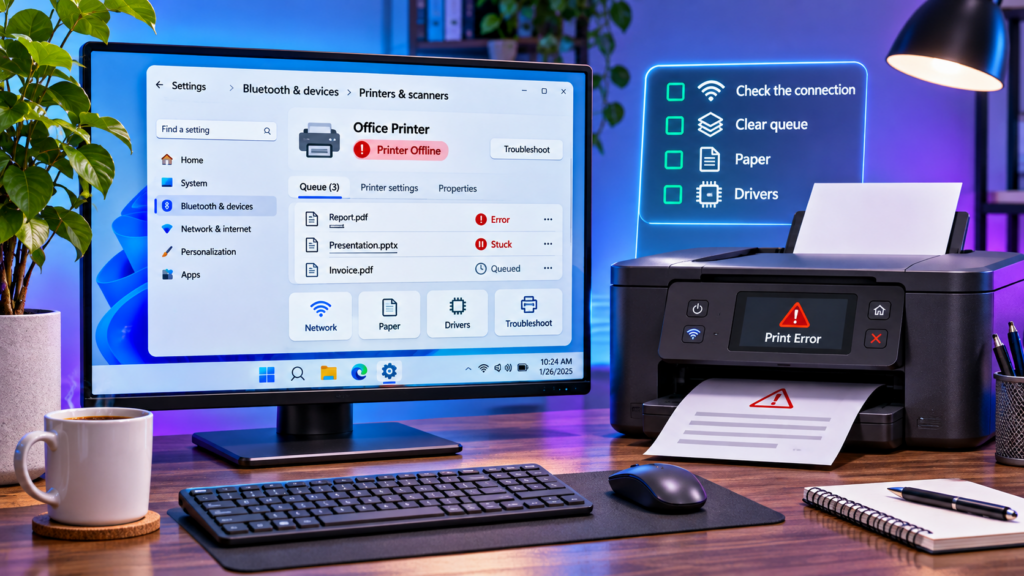
You click Print, wait a few seconds, and nothing happens. The printer has paper, the lights look normal, and Windows insists the job is still waiting. Before replacing the printer or reinstalling everything, a few simple checks can reveal where the problem really is.
Printer trouble is especially frustrating in a small office, where one device may handle invoices, forms, labels, and scanning. The good news is that many printing problems involve the connection, a stuck job, or software rather than failed hardware.
1. Check the printer before changing Windows
Start at the printer itself. Look for paper jams, an open cover, empty toner or ink, and error messages on its display. Turn the printer off, wait about 30 seconds, and turn it back on. If it has a built-in option to print a configuration or status page, try that. A successful internal test suggests the printing mechanism works, although it does not prove the connection to your computer is healthy.
For USB printers, check the cable and try another USB port. For network printers, confirm the printer is connected to your network. A printer can be powered on yet disconnected from Wi-Fi, especially after a router replacement or wireless password change. Microsoft recommends checking connections and printer status before reinstalling software. Microsoft’s printer troubleshooting guide covers these basics.
2. Make sure Windows is sending the job to the right printer
Click Start → Settings → Bluetooth & devices → Printers & scanners. Select the printer you intend to use. If you have several entries with nearly identical names, check carefully. Windows may be sending the document to an old printer, an offline copy, or a PDF printer.
Try printing a Windows test page from the printer’s properties. If that works but Word, Excel, or your accounting software does not, the issue may be limited to that application or document. Check the printer selected inside the app and try a different file. Microsoft’s application-specific printing guidance explains this useful distinction.
3. Clear a stuck print queue
One damaged or stalled job can hold up everything behind it. Return to Start → Settings → Bluetooth & devices → Printers & scanners, select your printer, and open its print queue. Cancel the stuck jobs, then send one small test page instead of a large document.
If the jobs will not disappear, restart the Windows Print Spooler service. Press Windows key + R, type services.msc, and press Enter. Find Print Spooler, right-click it, and select Restart. This may clear a temporary printing problem, but pending print jobs can be interrupted. On a shared office printer, coordinate with other users first. Microsoft documents these steps in its stuck print queue instructions.
There is also a more advanced procedure that deletes files from the Windows spool folder. Leave that to a technician if you’re unsure, particularly on a shared computer or print server. Don’t delete unrelated Windows files while trying to fix a printer.
4. Check the connection, not just the printer icon
When a network printer says “Offline,” it may have lost its connection, changed its network address, or become unreachable from that particular computer. Try printing from another computer on the same network. If every computer fails, investigate the printer or network first. If only one fails, focus on that computer’s settings and driver.
Many offices use a printer’s IP address to communicate with it. If the router assigns a different address after a restart, an existing Windows printer connection may still point to the old one. A technician can check the printer’s current address, Windows printer port, and router settings. Reserving a consistent address for a shared network printer can help prevent repeat incidents.
A wireless printer connected to a guest Wi-Fi network may also be isolated from office computers. Avoid disabling firewall protections simply to make the printer appear. The proper fix is to identify the required connection and allow only what is needed.
5. Be careful when updating or reinstalling drivers
A driver is the software that allows Windows to communicate with the printer. Drivers can become outdated, corrupted, or incompatible after a Windows upgrade. If the problem began immediately after an update, note the date before making more changes.
Visit the printer manufacturer’s official support website, search for the exact model, and confirm that the download supports your version of Windows. Microsoft also recommends checking driver compatibility and, where appropriate, reinstalling the printer. See its printer driver compatibility guide.
Before removing a printer, record its model, network address, port configuration, paper trays, and any special settings. This matters for receipt printers, label printers, accounting applications, and shared office devices. A generic driver might print a simple page while leaving duplex printing, finishing options, or scanning features unavailable.
6. Printing and scanning are two different problems
An all-in-one printer can print perfectly and still refuse to scan. Printing and scanning may use different drivers, applications, services, and network connections. If scanning fails, test whether the device can scan to a USB drive or another computer, if supported. Also check whether the manufacturer’s scanning software is installed and whether Windows has selected an unexpected application to open scanned images.
Do not assume that reinstalling the printer alone will repair scanning. If a security product or firewall was recently changed, have a technician verify the specific traffic needed for scanning rather than switching protection off permanently.
7. When is it time to call for service?
If you have tested the printer, checked the queue, and confirmed the connection, repeated failures deserve a closer look. Grinding noises, frequent jams, streaked pages, or errors on the printer’s own display can indicate hardware trouble. But if the printer works from one computer and not another, replacing the machine probably won’t solve the underlying problem.
For businesses, the real cost is often the interruption. Staff waiting to print invoices or scan documents lose time even when the repair itself is small. Regular device checks, controlled updates, and documented printer configurations can reduce surprises. Our Managed IT Services help businesses stay ahead of recurring computer and network issues. If you’re weighing repair costs against replacement, our article Should I Repair or Replace My Computer? explains a similar decision-making approach.
The bottom line
When a printer stops working, start with the simple checks: the printer’s own status, the selected Windows printer, the print queue, and the network connection. Change one thing at a time and test after each step. That makes the problem easier to identify and avoids turning a small printing issue into a much bigger one.